


 844-937-8679
 Login
Login


Your Brightspace resources
Now that you're enrolled in a competency-based education program, you'll use Brightspace for a personalized learning experience. Use the guide below to help you navigate this online learning platform whenever you need it.
All D2L marks are trademarks of D2L Corporation. Please visit D2L.com/trademarks for a list of D2L marks.

Quickstart guide
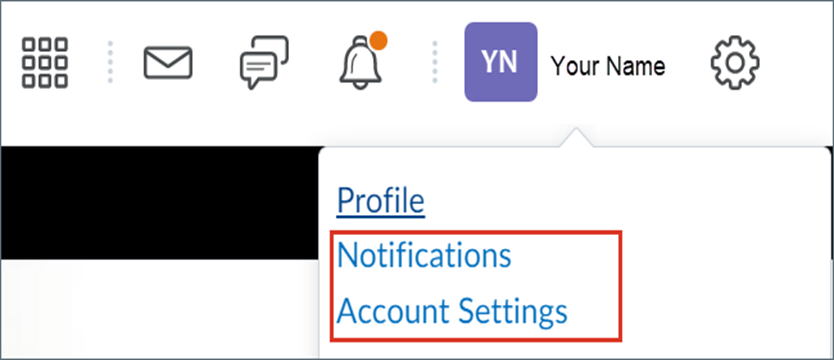
Setup your Brightspace account
Customize your account settings and notifications to further enhance the learning experience to suit your needs. Select your name located near the top right of the Brightspace classroom to reveal available options.
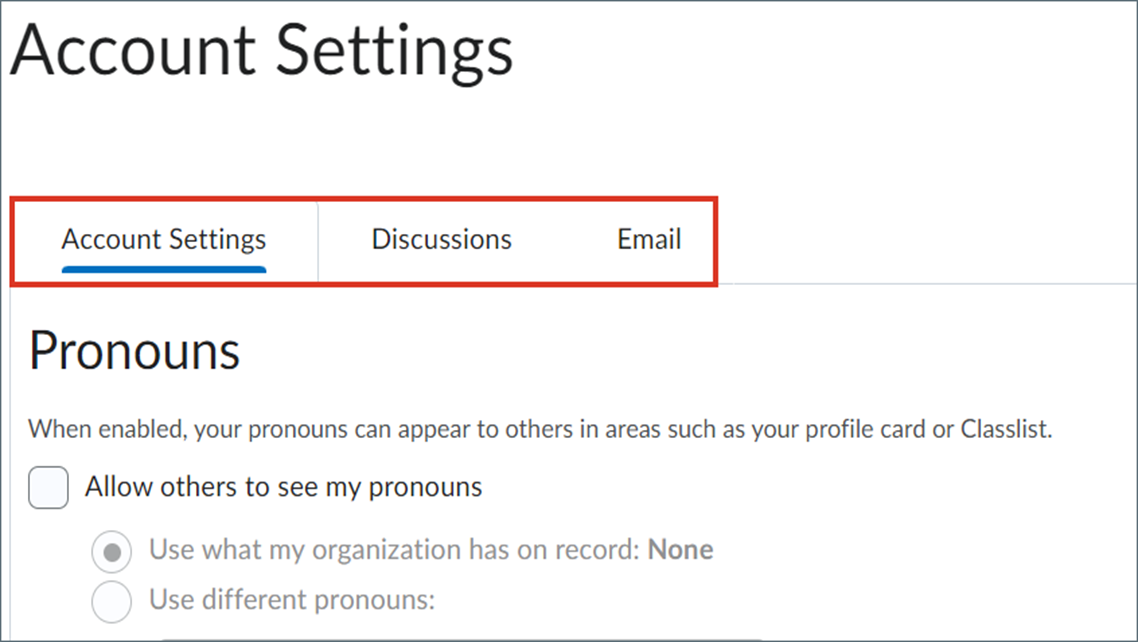
Account settings
Use this area to set your personal pronouns, time zone or add an email signature.
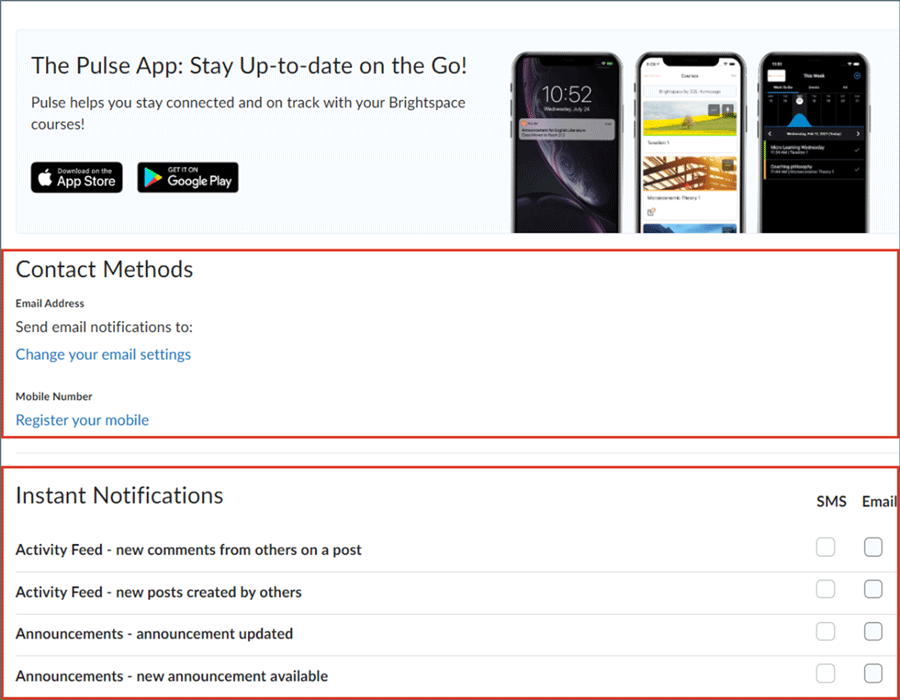
Notifications
Control how you receive notifications (email or text) about activity in your courses. Notifications include announcements, assignment feedback and more.
Navigate through your course content
Easily move through your course content or switch between courses with the Content Navigator, Table of Contents or the Course Selection Tool.
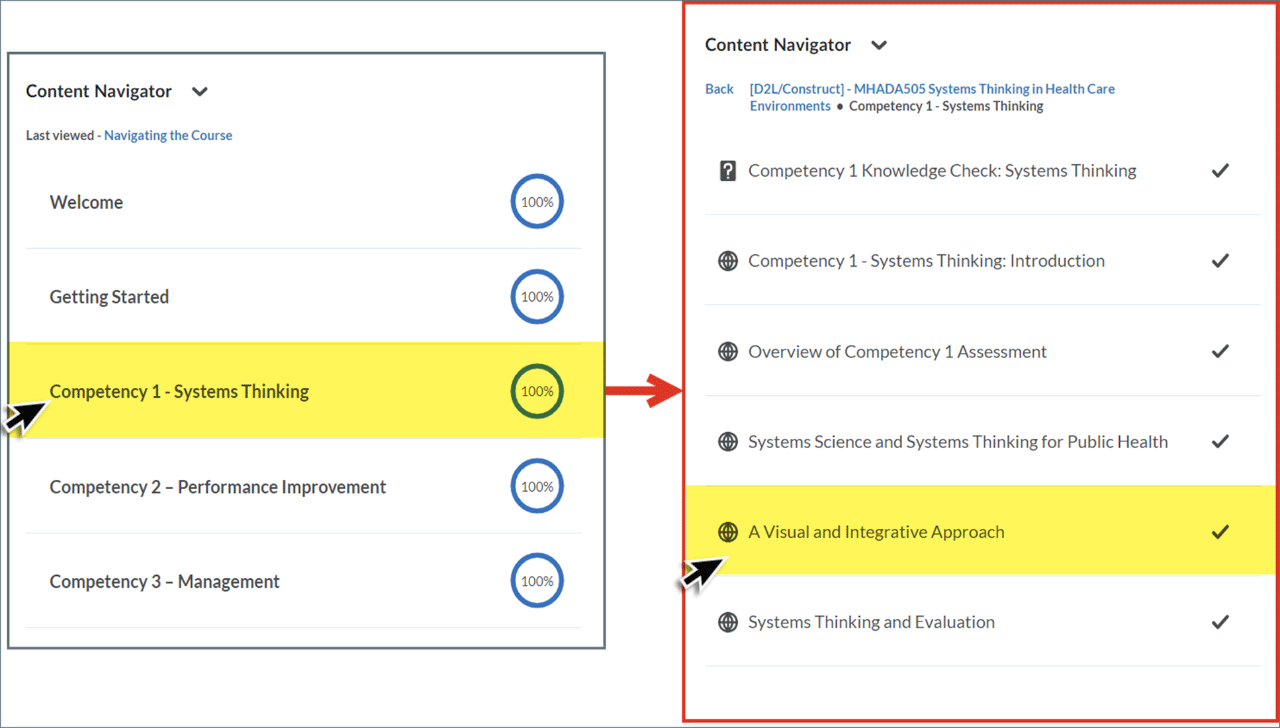
Content Navigator
Use the Content Navigator to quickly access course materials, including knowledge checks, assigned readings and assessments. The navigator is located on the left side of the Brightspace classroom.
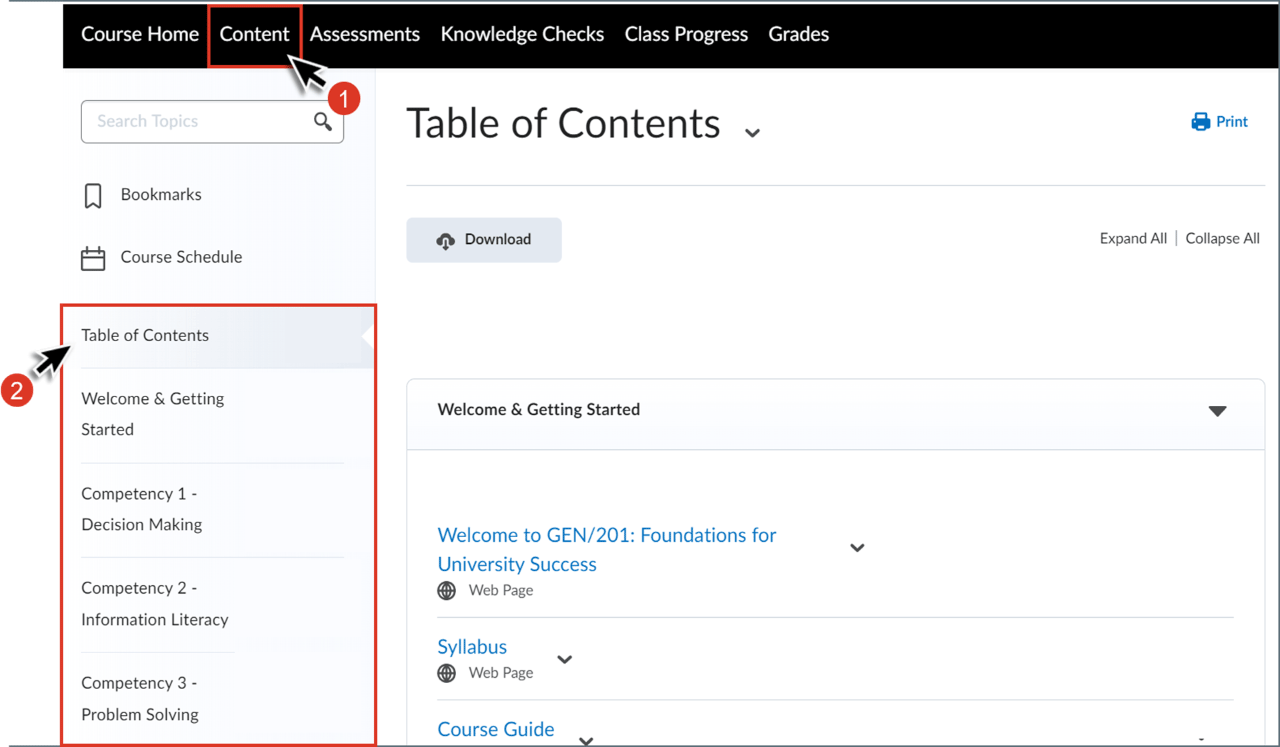
Table of Contents
Use the Table of Contents to view and access specific elements of the course, including knowledge checks, assigned readings and assessments. To access the Table of Contents, click the Content tab from the main menu in the Brightspace classroom.
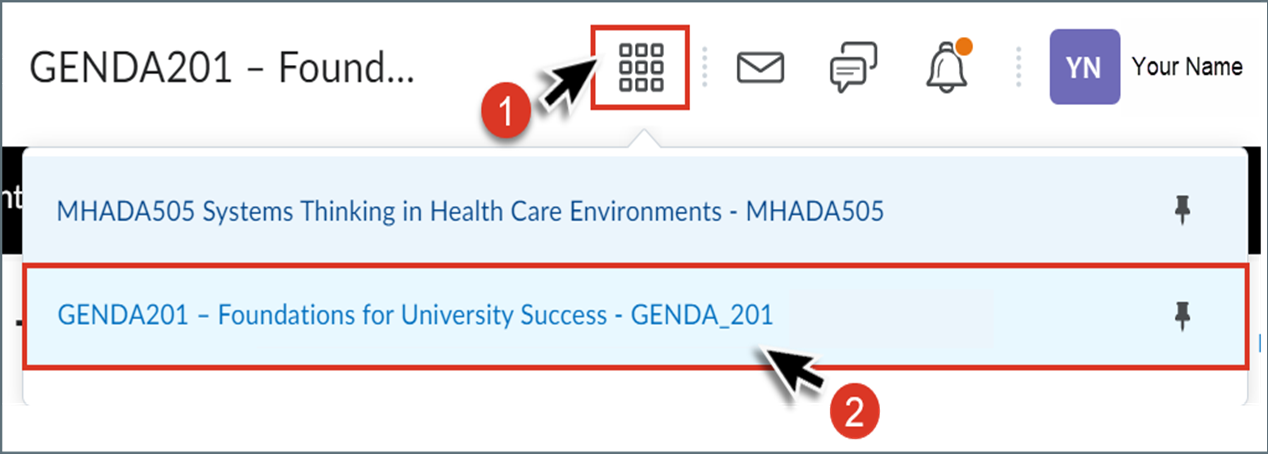
Course Selection Tool
Use the Course Selection Tool to easily move between courses. It’s located to the right of the course title in the Brightspace classroom.
How to communicate with faculty
Communicate with faculty through the Course Questions or Advice discussion board (the preferred method) or the Brightspace email feature.
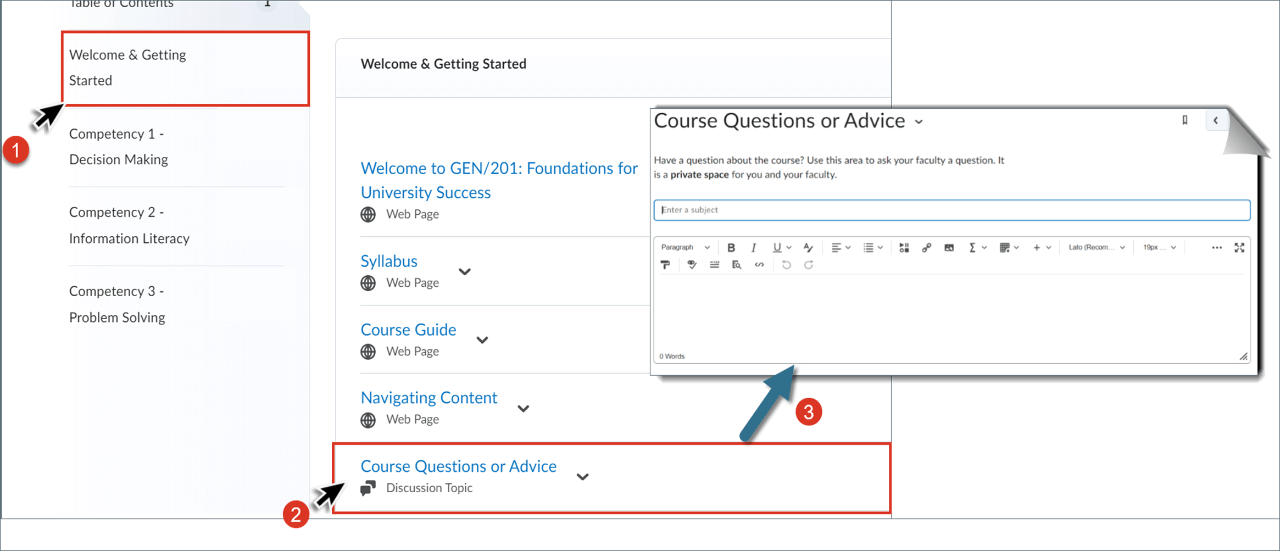
Course Questions or Advice (Preferred)
Engage with your faculty member through the Course Questions or Advice discussion board. Access this feature in the Welcome & Getting Started module in Content Navigator. This is the preferred method to contact your faculty member, which counts toward your academic related activities (ARAs).
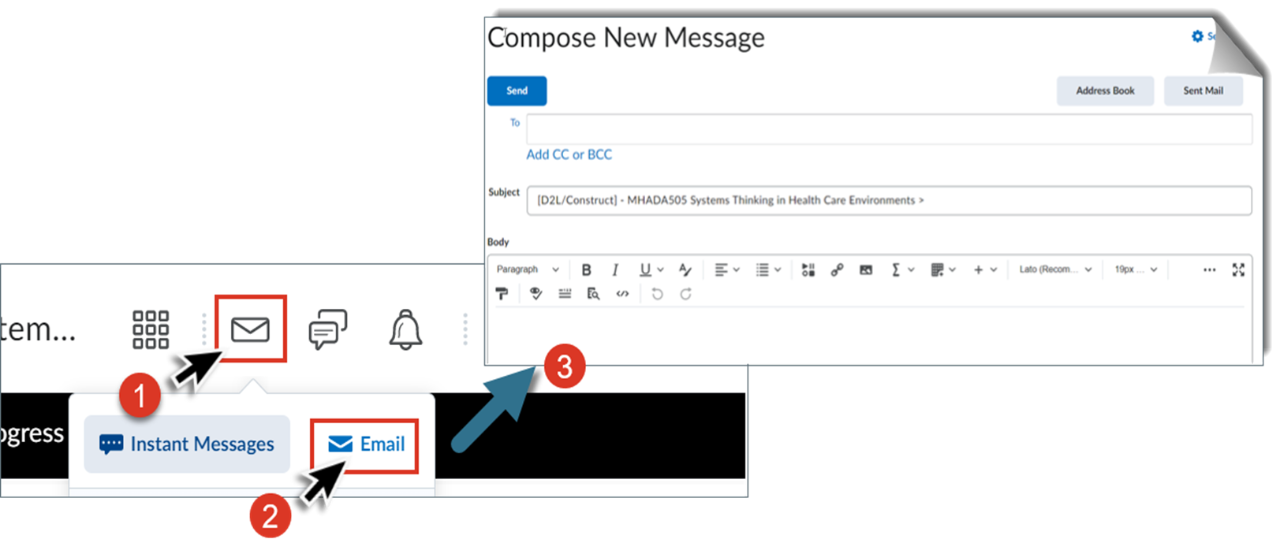
Email Feature
Send an email to your faculty member by clicking the mail icon located to the right of the course title in the Brightspace classroom. Please note: Private messages with your faculty member don’t count as academic related activities (ARAs) that help you meet enrollment or engagement requirements.
Gauge your understanding of competency areas
Your learning will regularly be assessed using a combination of Knowledge Checks, Reflection Activities and Competency Assessments.
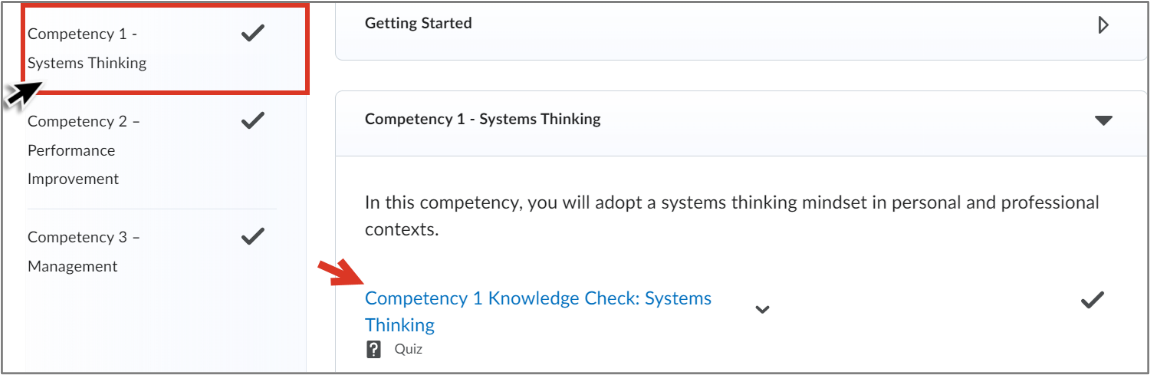
Content Navigator
Use the Content Navigator to quickly access course materials, including knowledge checks, assigned readings and assessments. The navigator is located on the left side of the Brightspace classroom.
See how you're doing in class
Monitor your class performance by reviewing your gradebook, assessment rubrics and faculty feedback.
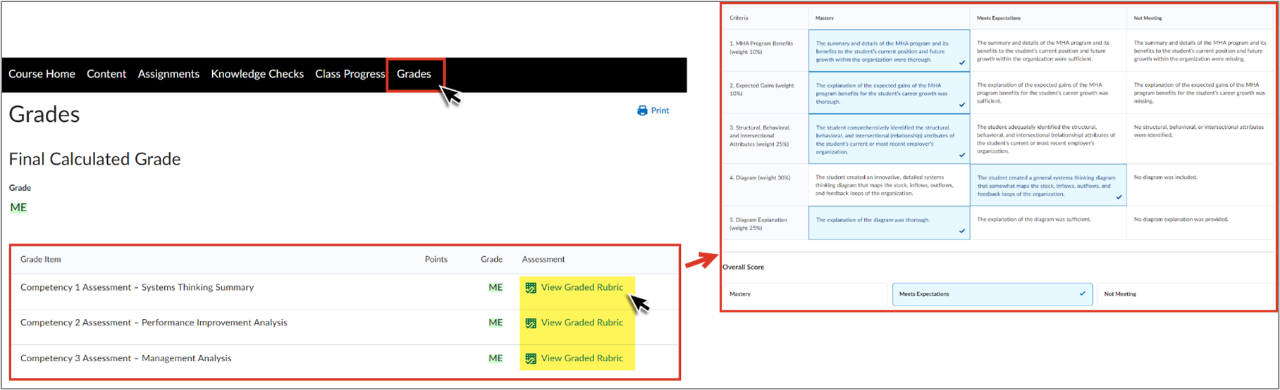
Gradebook and Rubrics
To access the gradebook or assessment rubrics, click the Grades tab from the main menu in the Brightspace classroom.
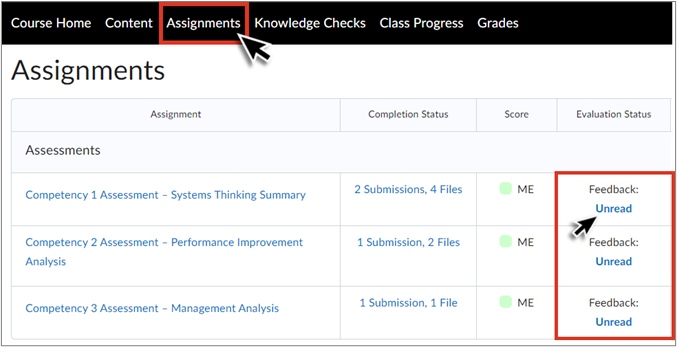
Faculty Feedback
To access faculty feedback on graded assessments, click the Assessments tab from the main menu in the Brightspace classroom. From here, select the Read/Unread link associated with your assessment to view your feedback.
Frequently asked questions
Navigation
Become comfortable navigating the Brightspace Learning Environment.
Content
Learn how to view and review course material with the Content tool.
Assignments
Learn how to navigate assignments and view feedback using Assignments.
Quizzes
Learn how to access a course’s quizzes or tests using Quizzes.
Class Progress
Learn how to view feedback and progress using Class Progress.
Grades
Learn how to review grades and feedback on assignments with the Grades tool.
Submit and Confirm a Submission
Learn how to submit and confirm an assignment submission.
Resubmit a Submission
Learn how to resubmit an assignment.
Assignment FAQ
Still need help? Browse frequently asked questions about assignments.
View Grades and Feedback
Learn how to check your grades and feedback from your instructor.
Take a Quiz
Learn how to take evaluations, which include quizzes, mid-terms or final exams.
View and Understand the Submission View
Learn how to read the feedback provided in the quizzes submission view.
Quizzes FAQ
Still need help? Browse frequently asked questions about quizzes.
Account settings
Learn how to edit your account settings.
Profile
Learn how to create your personal profile.
Notifications
Learn how to customize your notifications.
Manage Your Calendar
Learn how to navigate your calendar.
Content FAQ
Still need help? Browse frequently asked questions about content.
Still need help with Brightspace? Contact the Technical Assistance Center.