


 844-937-8679
 Login
Login



Classroom Resource Center
Discover tools, guides and videos to help you navigate your online classroom, manage assignments and stay on track with your education.
Introducing your virtual classroom

Quickstart guide
NEW STUDENT TIP
Computer and internet requirement
To give you the best opportunity to succeed in class, you’ll need regular access to a laptop or desktop computer, along with reliable internet connection.
Mobile devices alone will not be sufficient to complete your program. Many course assignments will require a computer with internet access to complete and submit work.
You will need regular access to a laptop or desktop computer to give you the best opportunity to succeed.
Mobile devices alone will not be sufficient to complete your program. Many course assignments will require you to use a computer to complete and submit your assignment.
Is your browser compatible?
Blackboard Ultra works best with these recommended browsers:
- Chrome
- Safari
- Firefox
- Microsoft Edge
Make sure your browser and operating system are up to date before logging into your classroom for the optimal experience.
Need more info? See complete tech requirements
Finding your assignments
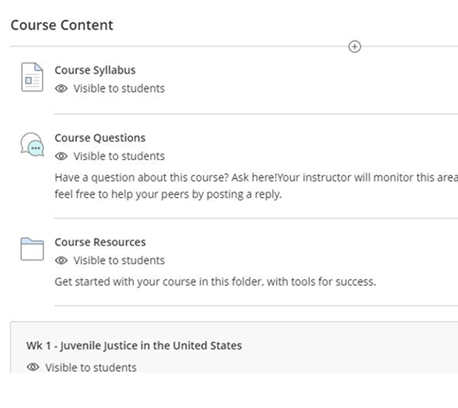
Step 1: You can access your course content by clicking on the first tab on the course navigation bar.

Step 2: Upon clicking the 'Content' tab, you will find your course resources, as well as a folder or module for each week of the course. These will vary by course.
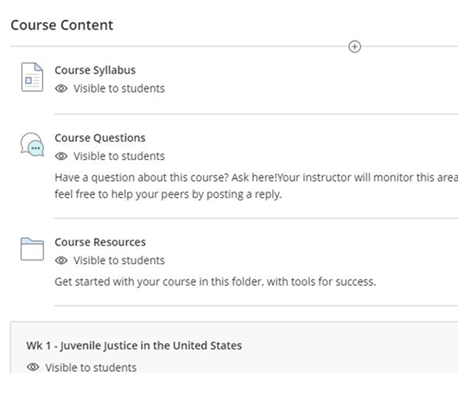
Step 3: To view your course content, simply click on a folder to open it.
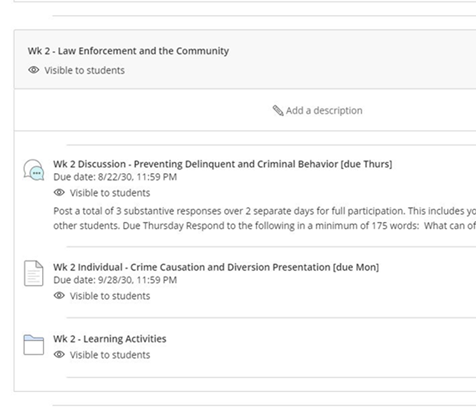
How to post in a discussion
Step 1: To view your required discussion activity, access the current week module. Here you will find the required discussion activity. They will be typically labeled 'Discussion' in the description of the activity.
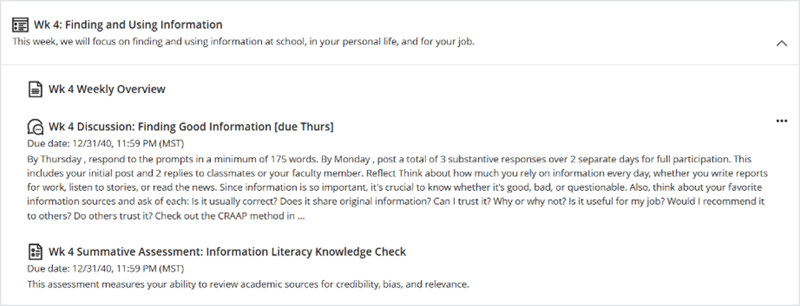
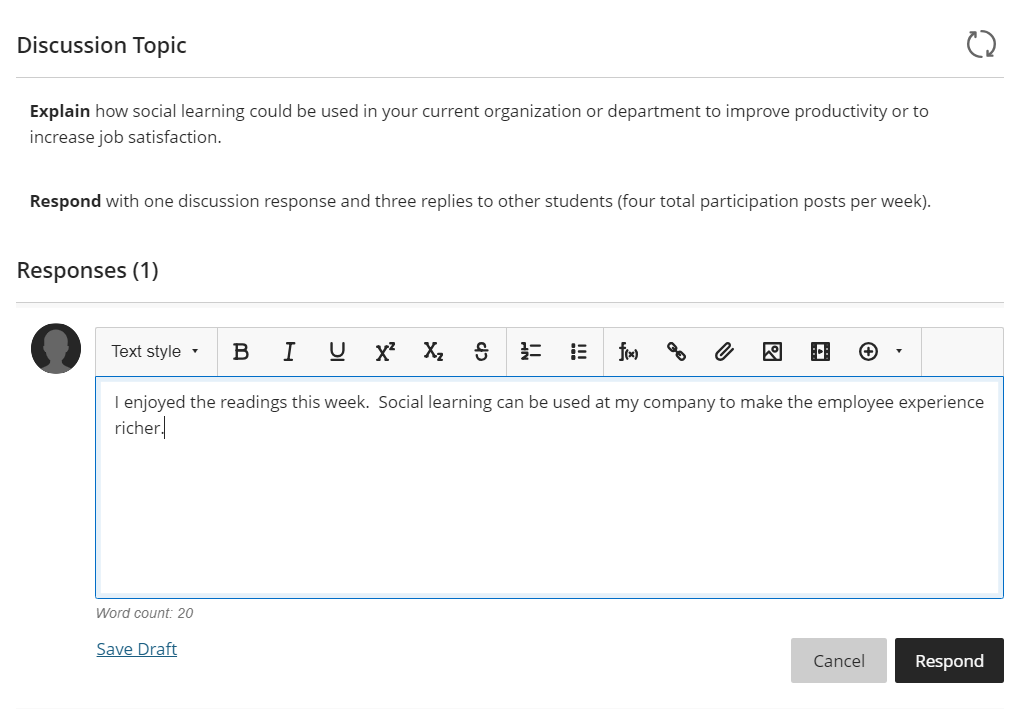
Step 2: Within a given discussion, you will see the discussion topic along with a response area below it.
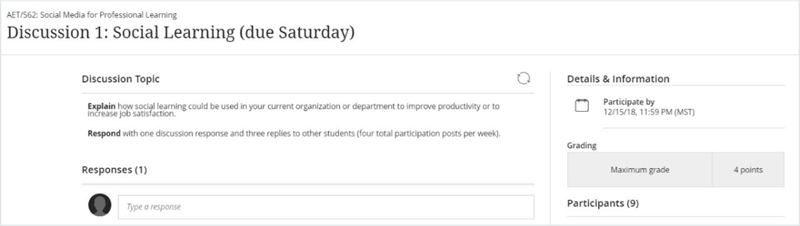
Step 3: Respond to a discussion using the given response area. You can choose to respond immediately or save a draft for later.
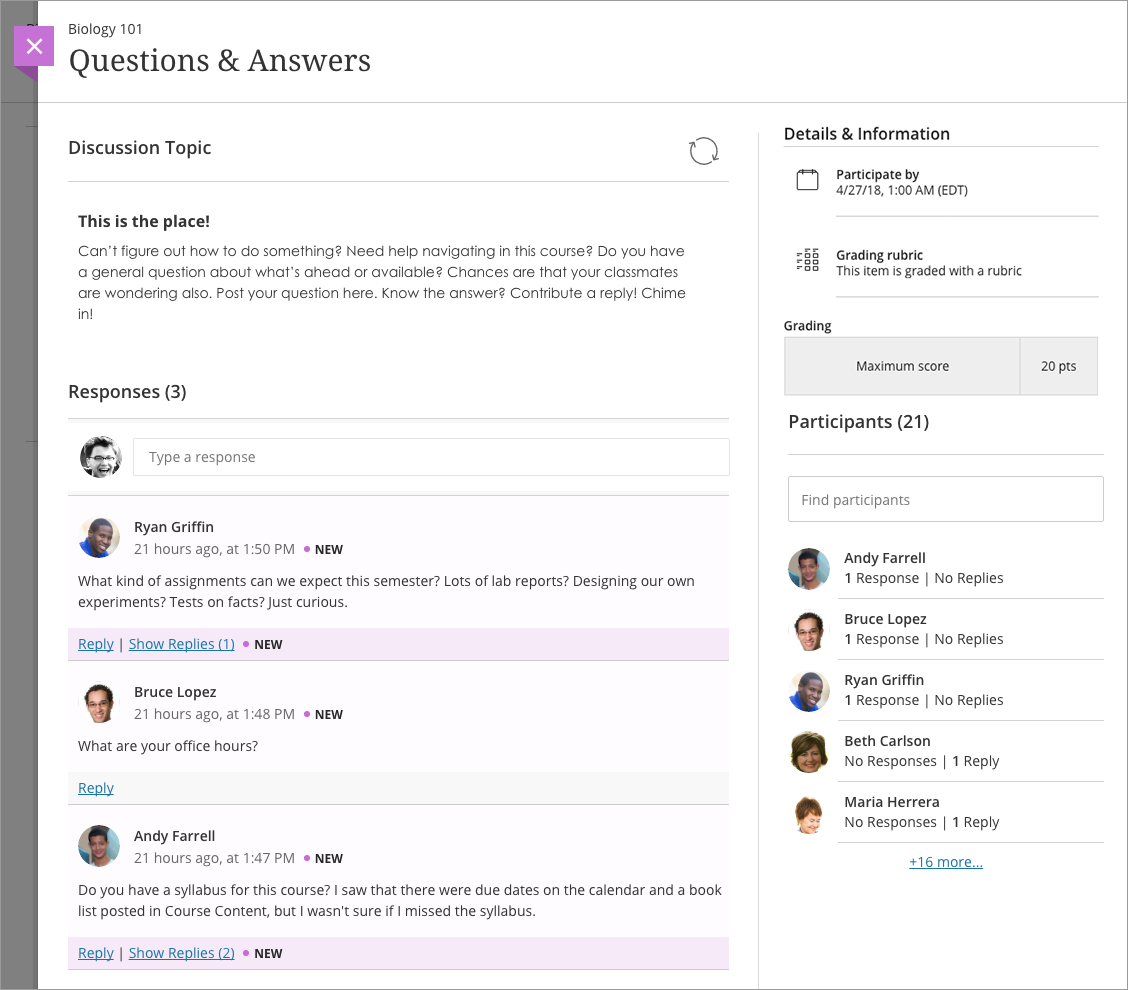
Step 4: To view replies from others, simply click on 'Show replies.' Any new replies will be highlighted.
How to check grades and feedback
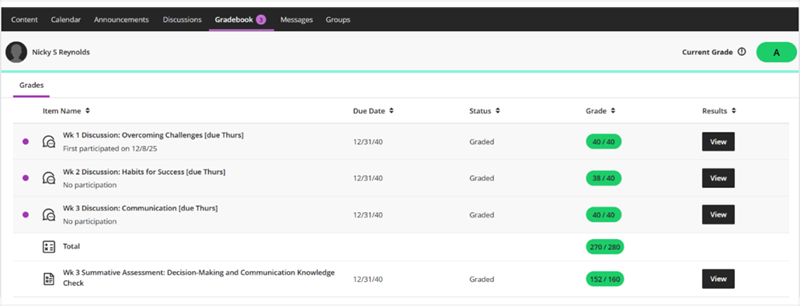
Method 1: You can access your grades by clicking on the 'Gradebook' tab, fifth from the left, on your course navigation bar.

If a grade has been posted, it will appear here, reflecting a 'Graded' status for the associated learning activity. If feedback has been added, you will see a 'View' button to the right of the grade. Click 'View' to see any feedback. (Not all assignments will have written feedback.)
Method 2: You can see all past assignments by clicking on the 'Content' tab and opening the folder containing your assignment. Click on the assignment to see if it has been graded. If it has, you will see the grade displayed. If feedback has been added, you will see a purple icon next to your grade. Click the purple icon to view any feedback.
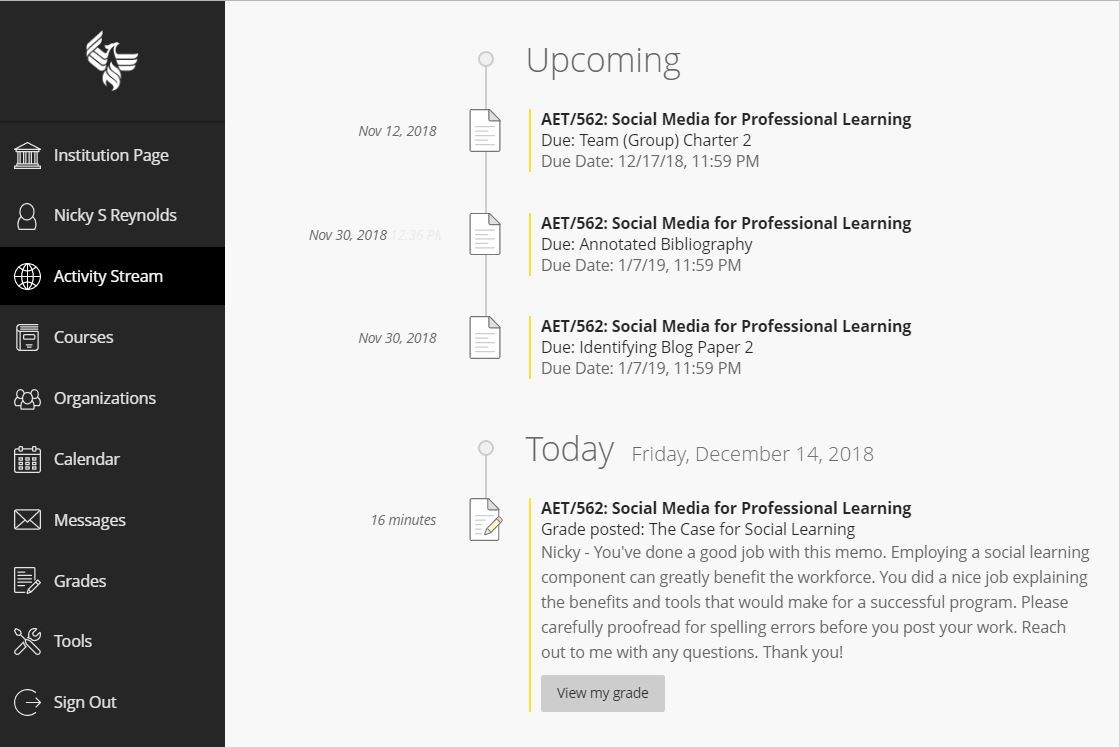
Method 3: You can see when your instructor updates grades within your Activity Stream. You can click on the 'View my grade' button in an activity message to see your grade and feedback.
Viewing messages
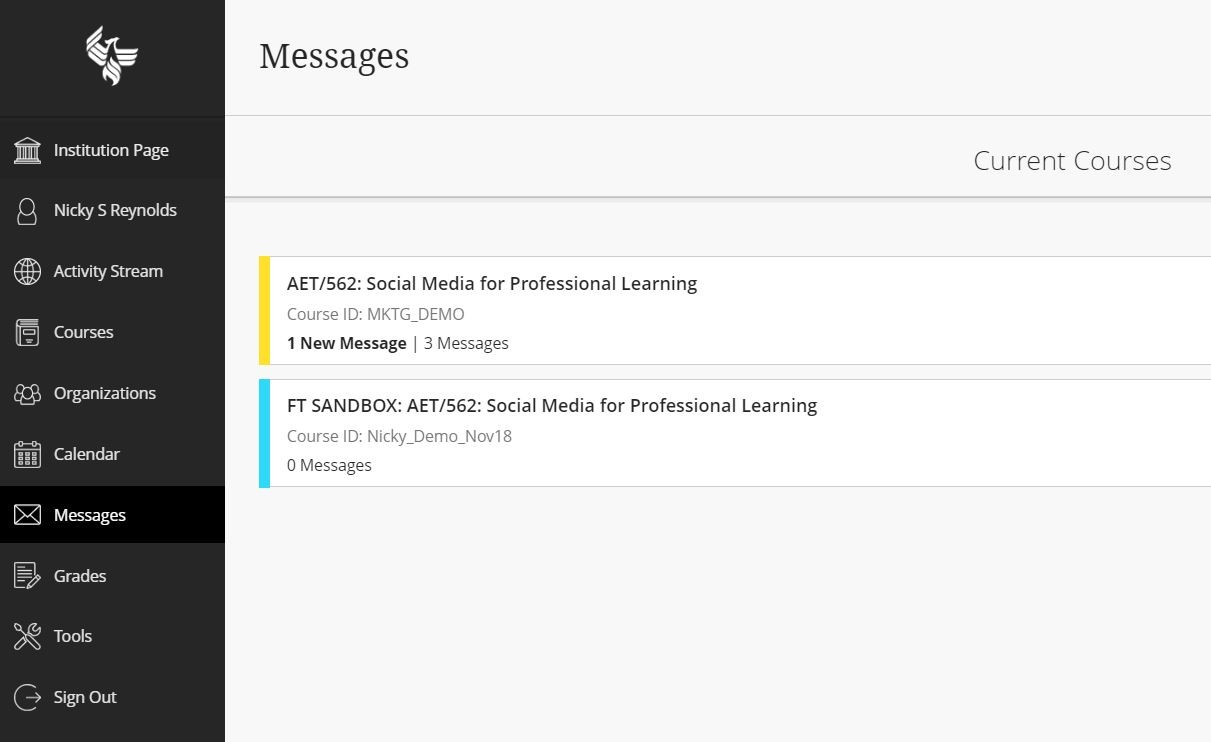
Method 1: To check your messages, simply click the 'Messages' tab on your course navigation bar. Here, you’ll see specific message threads inside that you can click on to read your messages.

Method 2: Using Blackboard's side navigation panel, which is outside of your course, you can click on the 'Messages' tab. Here, you will find all messages across your current and previous courses.
Managing notifications
To manage notifications settings, click on your personal profile. Within your personal profile, you can choose to receive email, text and Activity Stream notifications.
Tips for your learning journey

Frequently asked questions
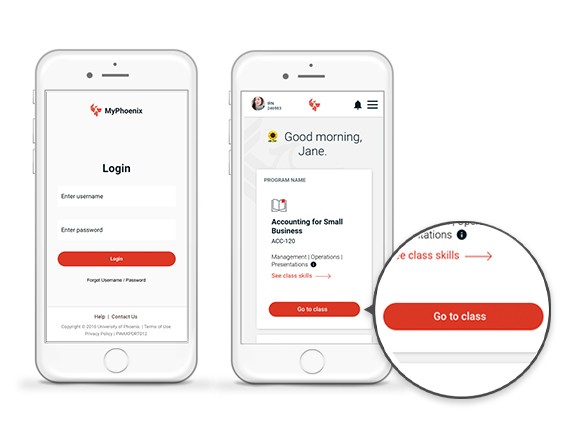
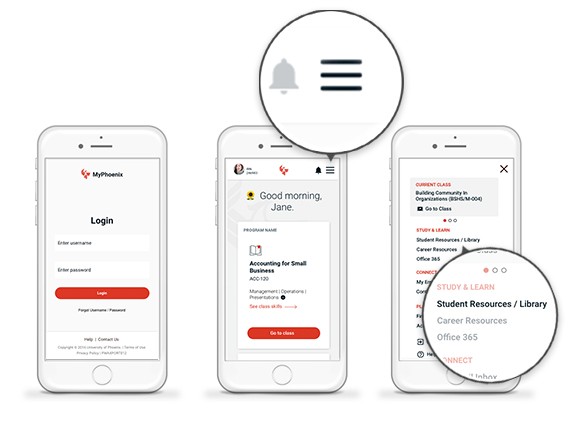
Log in to MyPhoenix using your mobile web browser, just as you would on your computer. Then click the 'Go to class' button on the homepage.
Once you're logged into MyPhoenix on your mobile browser, tap the menu button (the icon with three horizontal lines) in the top left corner. Find the Resources section and select 'University Library.'
You can use Blackboard Collaborate to interact with students or faculty by swapping files, sharing applications and taking notes on a virtual whiteboard. Here's how:
1. Log into your class
2. Go to the Details & Actions panel (On desktop, this will be to the right of Course Content section. On mobile, it will be nested under the Content tab.)
3. Under Class Collaborate, select 'Join session'
4. Select 'Course Room' to start collaborating
Here are two resources to support you at every step as you learn how Blackboard works:
- Blackboard Ultra Manual (PDF): A detailed, downloadable guide with everything you need to know about using Blackboard Ultra.
- Blackboard Ultra Help Site: A go-to online resource for tutorials, FAQs and troubleshooting tips.
Technical support is available from 5 a.m. to 1 a.m. (Arizona Time), 7 days a week, including select hours on major holidays. Please call 877-832-4867.

Questions?
Connect with an enrollment representative to find out more about your online classroom and preparing for your first day of class.